2.2.2.1. Animation in VSE
Blender is a 2D modeling and animation program. So, animation appears in many different places; for example, rigging, 2D animation (grease pencil), physics simulation & particle systems and, of course, in the Video Sequence Editor.
Animation in the VSE is exclusively achieved with the use of keyframes. Creating and editing keyframes is fully described in the docs; section animation & rigging.
Figure 2 shows the result of a simple Fade In and Out animation (menu Add > Fade > Fade In and Out). The default VSE workspace is adapted so that it is a little easier to work with animations. The default General > Animation workspace is preconfigured for working in 3D view, not for animations within the VSE. In figure 2, the File Browser window of the default VSE workspace (top left) is replaced with the Graph Editor. The Timeline editor (bottom) is somewhat increased in height and also replaced with the Dope Sheet Editor.

Figure 1: Adapted VSE workspace to work with animations
As you can see in the Preview window, the strip with the Blender logo is animated. At frame 0, the logo is invisible (opacity = 0). It becomes gradually more visible until it is completely opaque at frame 13 - 14. Then the Fade Out sets in until the logo disappears at frame 26. This is the result of the standard Fade In and Out effect.
With the setting Show Overlays > F-curves, you can see this Opacity change in the strip background. For more exact numbers, you have to look at the sidebar for the Opacity property. At frame 20 (but also at frame 7) the Opacity is exact 0.500. You can tell that there is a keyframe at the Opacity attribute because it is colored (see keyframes for a description of the meaning of the different colors).
In total, the animation has 4 keyframes: at frame 0 (opacity = 0), 13 (opacity = 1), 14 (opacity = 1) and 26 (opacity = 0). These keyframes are represented by an orange color in the Properties and with small circles in the Dope Sheet (bottom) and Graph Editor (top left). The Dope Sheet is primarily used for basic operations on keyframes: inserting new keyframes (of the same attribute), deleting, moving, scaling, duplicating (copy/paste) keyframes. More information on the Dope Sheet can be found in Editors > Dope Sheet of the docs.
The Graph Editor is mostly used to change the timing of the animation. Each keyframe in the Graph Editor has Bezier-like handles from which you can change the appearance of the F-curve. As you can see in the graph the Opacity (of Blender-logo.png) changes in a smooth way from 0 to 1 and back to 0. Dragging the keyframe handles changes the slope of the curve. More information on the Graph Editor can be found in Editors > Graph Editor of the docs.
Suppose you want the increase the time of the plateau (opacity = 1) of the F-curve. With the default Fade In and Out effect, the animation only stays two frames at maximum opacity. You can select the third keyframe (in Dope Sheet or Graph Editor) but then the F-curve becomes asymmetrical (long increase, short decrease). You can also select keyframes 3 an 4, and drag them to the right.
To create the animation manually, follow the next steps.
Select the strip you want to apply the effect on. You cannot add keyframes to multiple strips in one action.
Set the playhead at the very start of the strip; e.g. frame 0.
Set the opacity to 0 in the sidebar Properties.
4. Hover the mouse cursor over opacity attribute and press I to insert a keyframe. The background of the attribute becomes green. 6. Move the playhead to the frame 13. 7. Set the opacity to 1 and set a new keyframe (repeat step 4). 8. Move the playhead to frame 14 and repeat step 4 (set keyframe on opacity). 9. Move playhead to the last frame (e.g. frame 26). Change the opacity to 0 and set a keyframe (repeat step 4). 10. Repeat step 4-5 for each attribute.
It is possible that the slope of your F-curve is different due to different Preferences. To change these preferences: menu Edit > Preferences > Animation > Default Interpolation. You can also change the Interpolation of this particular F-curve by selecting all keyframes, pressing T and selecting Bezier.
Another example
Here’s how to create a Ken Burns effect; to simulate motion from still images.
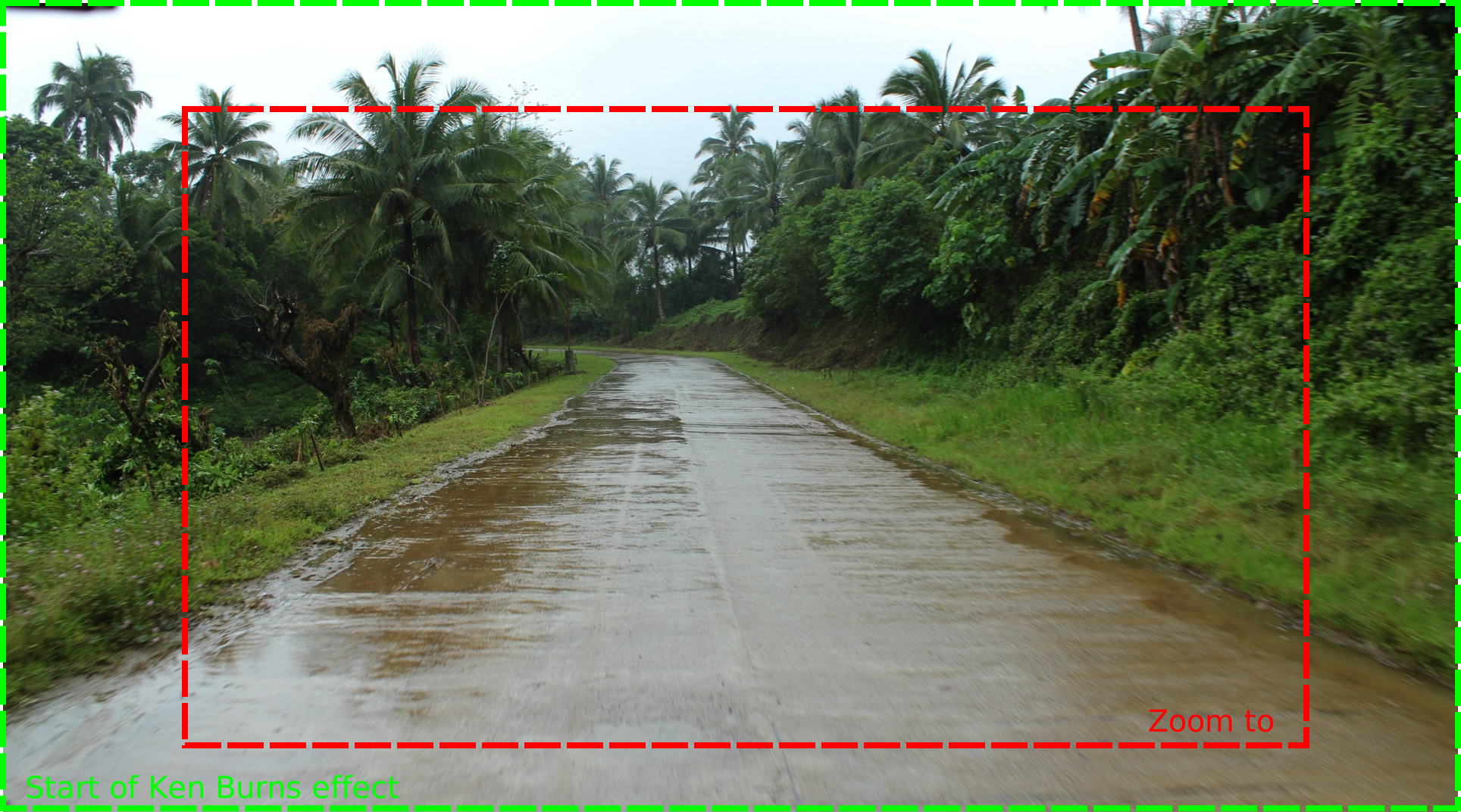
Figure 1. Example of Ken Burns effect
Select the strip you want to apply the effect on. You cannot add keyframes to multiple strips in one action.
Set the playhead at the very start of the strip.
Zoom in on the image for a wide-angle view.
Hover the mouse cursor over the transform > Scale X attribute in the side bar.
Press I to insert a keyframe. Repeat step 4-5 for the Scale Y attribute; eventually also for the Position X and Y attributes. This action will remember the original zoom-state of the image; eg. the green outline in figure 1.
Move the playhead to the last frame of the still image strip.
Zoom in on the image; eventually reposition the image a bit. This is represented by the red rectangle in figure 1.
Repeat step 4-5 for each attribute.