2.2.1.3. Add
After setting up your project, you should haven an organized directory with all your footage. The first step in Montage is to import this footage and to add some supporting strips (text, color, …).
2.2.1.3.1. Import
Note
Blender is - as all video editors nowadays - a non-linear editing (NLE) system. According to wikipedia non-linear editing is a form of offline editing for audio, video, and image editing, where the original content is not modified in the course of editing.
There are three methods available to import footage with subtle but sometimes annoying differences between them. Mikeycal Meyers demonstrated them in a short video tutorial.
Add a strip with the shortcut key (Shift - A ) or the Add menu to the Sequencer timeline and locate the desired file with a modified Blender File Browser version.
Drag a video, sound, or image/image sequence on the timeline with the Blender File Browser. The Blender File Browser is the top-left window in the Video Editing workspace (see figure 1).
Drag and drop the desired video, sound, or image file on the sequencer timeline from the File Browser of the operating system.

Figure 1: Three import methods
Only with the Add (2nd) method can you add all of the available strip types. The other methods only allow adding Movie, Sound, or Image/Image Sequence strips.
Also, only the Add method offers the Import options (Scale To Fit, …). A discussion of these options is in the next section.
And also, only the Add method can import multiple files. Although you can select multiple files (as well in the Blender File Browser as in the OS File Browser), only one file (the first selected) is dropped on the timeline. Probably, for the same reason, it is not possible to add an Image Sequence.
Warning
All three methods are rather limited, compared to some other video editors.
Using the Add method with multiple clips will place them one after the other on the timeline, starting at the position of the playhead. If you want them stacked however, you have to add the clips one by one.
When there are already strips at the position of the playhead, Blender will add the strips at the first free channel. You cannot choose the channel, you want the clips to be added.
The location where you drop the strip is not important. Blender will insert them at the position of the playhead. If, however, you try to drop the strip upon another strip or between strips (hoping that it will insert the strip), nothing will happen. The strip isn’t even added.
There are 128 channels available for inserting strips, although you can scroll to higher-numbered channels. So, in principle, you cannot add more than 128 strips at the same time position. You can however work around this limitation by using meta strips. Select a few strips and right click. Choose “Make meta strip”. Shortcut Ctrl G. The selected strips collapse into one channel and count also as 1 channel.
It is not possible to import strips before or between other strips. You can do that however within the sequencer.
For the File Browser Drag method, you need to drag the icon of the file. Trying to drag the name will only invoke a select operation.
Some of these limitations are tackled by addons. For example, the VSE Quick Functions addon has the following import additions:
Import At Frame: standard import behavior, places new sequences at the playhead.
Insert At Frame: the following sequence will be moved forward by the length of the imported sequence.
Cut And Insert At Frame: all sequences at the current frame will be cut and all following sequences will be moved forward by the length of the imported sequence.
Import At End: places the imported sequences at the end of the timeline.
There is also a working but experimental version of the Three Point Edit method. With this method, you can load a source clip in a separate preview window (e.g. the Movie Clip Editor), scrub in this clip and set the In (Start) and Out (Finish) points and import this part of the source clip into the timeline with various options (import at frame, insert at frame, …, see above).
2.2.1.3.1.1. Options

Figure 2: Import options Movie strip
There are only import options for strip types of group 2: Movie, Sound, and Image/Image Sequence because they have an external source.
- Relative Path
The location of the video file is stored and available in the Source panel. This location can be relative - starting from the location of the Blend-file where the asset is imported - or absolute - starting from the root directory of the computer - (see Blender manual ). The Blend-file is of course already saved and the external file could not be on a different drive.
- Start Frame
As the name implies, the Start frame of the movie. This field is automatically filled in with the position of the playhead; e.g. with the value zero if the playhead is at position 0, or 15 if the playhead is at position 15.
- Channel
The Channel to place the strip. The filled-in channel is always one, even if there is already a strip at that position. The newly added strip however will be placed at the next lower or higher free channel. The maximum number of channels is 32, even though you can see more channels.
- Replace Selection
Replaces the currently selected strips with the new strip.
Todo
The Replace Selection option does not seem to do anything.
- Set View Transform
When enabled (default), this option sets the View Transform to Standard on the first import of a Movie clip. You can find the View Transform property in the Properties Editor > Render Properties > Color Management panel. Most video files are encoded in the sRGB (=standard) color space. Color values can fluctuate between 0 and 1. In the 3D modeling world, however, color values can fluctuate between 0 and infinity, depending on the amount of light you add to a scene. Therefore, a different View Transform algorithm (e.g. Filmic) is used. For example, if you start your project within the Modeling workspace, the View Transform option is set by default to Filmic. A mismatch of this View Transform setting can cause huge delays in render time and distortions of colors.
- Fit Method
The dimensions of the scene/project do not always fit the dimensions of the movie or image that you want to import. For example; you want to import an image of 500 (w) x 500 (h) into a scene of 640 (w) x 360 (h). It’s obvious that the height of the image (500) will not fit into the height of the scene (360). The Fit method determines how images are scaled to fit inside the render area. This is done by changing the Transform Scale X and Y properties of the imported image.
- Scale to Fit
The visual content of the strip fits exactly within the project’s Dimensions while maintaining the original aspect ratio. This means that - from the above example (see also figure 3) - that the height of image (500) should be scaled to fit exactly in the height of the scene (360) with a factor of 0.72 (360/500). Because this method wants to maintain the original aspect ratio of the image, also the width should be scaled by 0.72, creating transparent vertical bands.
- Scale to Fill
The visual content of the strip spans the project’s Dimensions while maintaining the original aspect ratio. In our example: the largest dimension of the scene (640) should be filled with the image (500). So the image should be enlarged in the X axis with a factor of 1.28 (= 640 /500).
This may mean that portions of the original image no longer fit the content inside the rendered area.
- Stretch to Fill
The visual content of the strip fills the project’s Dimensions. Note that, unlike the other two methods, Stretch to Fill does not maintain the original aspect ratio.
This could result in a distortion of the original image (see figure 3).
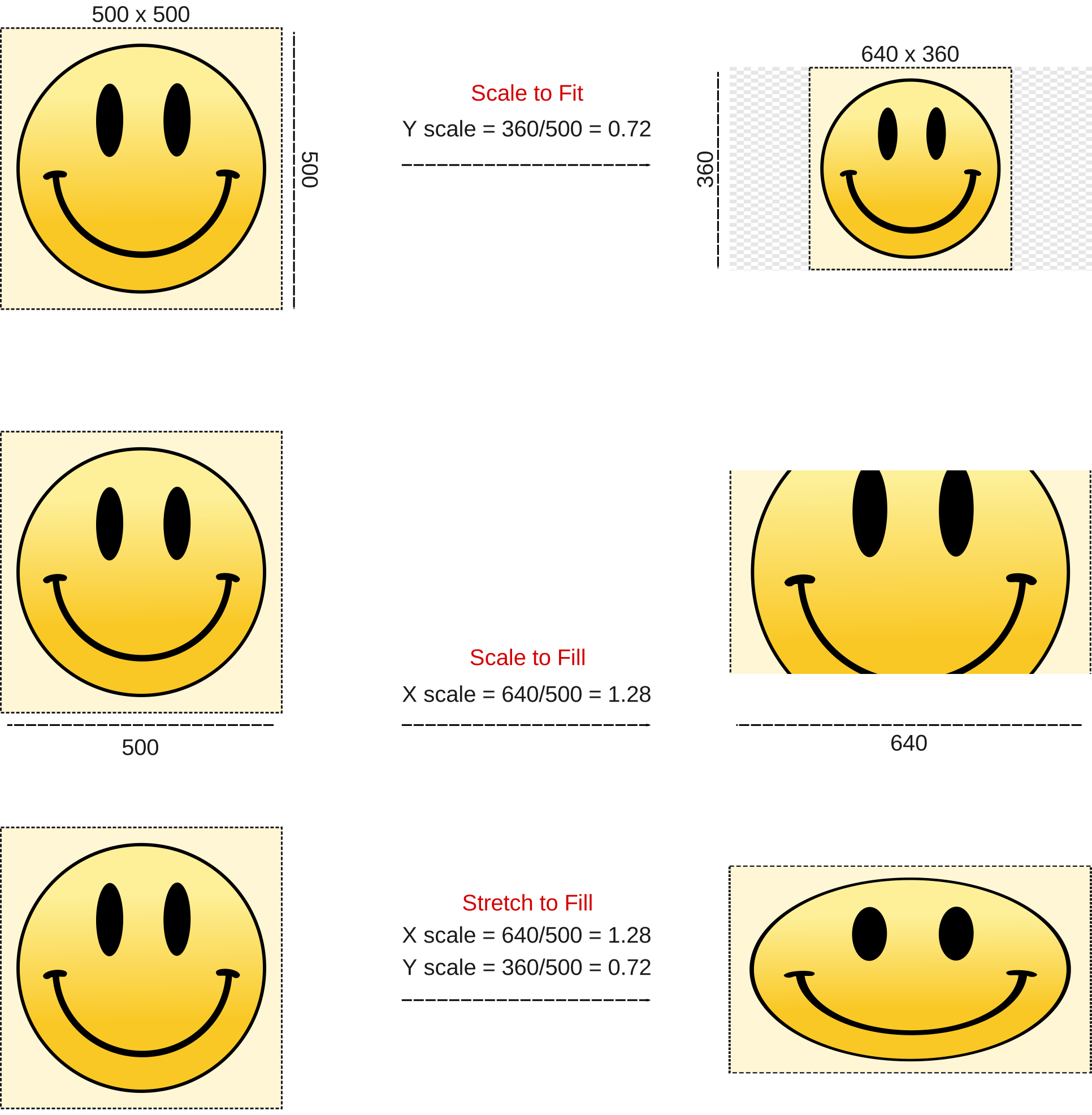
Figure 3: Three Fit methods
- Sound
If the video file contains an embedded audio channel, enabling this option will add a Sound Strip to the that contains the movie’s audio track. Disabling the option will only add a movie strip without the audio.
- Use Movie Frame Rate
This option sets the Scene Frame Rate of the Scene to the frame rate encoded in the added movie file. A mismatch of the project and strip frame rate is often the cause of synchronizing problems with the audio. When a new Blend-file is created, the framerate is by default set to 24 fps. Unless this option is enabled, adding a movie with a framerate of 30 fps, will result in this kind of problems.
The Image/Image Sequence strip has no Sound or Use Movie Frame Rate option
(because they don’t make any sense in this context). The Use Placeholders option is added.
The Sound strip has in addition no Fit method option. The options Cache and Mono however are added.
These options are already described in the properties list of the
Image Sequence strip and Sound strip.
2.2.1.3.1.2. Organize timeline
Working with a long and complex timeline isn’t easy. Some kind of organization is needed in order to work as efficiently as possible. The adagio “Leave your timeline in a state that someone else could pick it up” certainly applies. Although organizing your timeline is probably a highly individual approach, the following tips may offer some help.
Blender VSE lets you place whatever strip on whatever channel. Many editors however group their channels into functional bands: e.g. channel 1-5: audio, 5-10: video, 11-15: effects. Within each band there can be sub-bands such as background music, voice-over, ambient sounds, … Take a look at Organize your assets for a possible categorization.
Some video editing programs link the video and embedded audio strip. The advantage of course is that moving one strip will move the other. Synchronization issues will less likely appear. In Blender VSE, the video and audio are not linked. A work-around is to use meta strips but this has the disadvantage that you cannot see the Sound wave. The VSQEF addon lets you parent strips: see video tutorial.
Blender’s VSE doesn’t use the concept of a “bin”: a virtual folder that lives only inside the project to hold references to source clips. But, it can easily be emulated by using multiple scenes. In figure 4, two scenes (Raw footage and Rough cut) are created (slide 1). All clips are added to the timeline of the Raw Footage scene. The Display Mode of the Outliner (top right window) is set to
Scenes(slide 2). You can switch very easily between the timelines of both scenes by just selecting the scene in the Outliner (slide 3).
Figure 4: How to create “Bins”? Click on the image or use the keyboard arrows to view the next slide.
When doing fiction, you could organize your footage in:
Sequence: a series of scenes. S. Kubrick always told his stories in 8 sequences.
Scene: a situation that plays out in one location in continuity.
Shot: a camera set up to cover the entire scene or a part of it.
Take: a recorded attempt out of many to get the shot right.
2.2.1.3.1.3. Add
With the shortcut key Shift - A you can add strips without any external source (text, color, …); see Strip types for an in-depth overview of all available types.
The placement of these strips obey the same rules as with importing strips.