2.2.1.8. Remove/disable
Strips can be removed or disabled with the commands delete, Mute, and Lock.
2.2.1.8.1. Delete
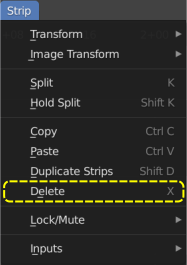
Figure 1: Strip menu
Deleting one or multiple selected strips is done by pressing the X key or the Delete key or with the menu Strip > Delete or the context menu with RMB + Click (see figure 1).
This Delete operation can of course be undone with the Undo command or Ctrl Z key. Deleting a strip that has an associated effect (e.g. Glow or Gaussian Blur) will also delete the effect strip.
The preferred key for deletion is X and not Delete because the X key can be accessed easily with the left hand on a standard (Qwerty) keyboard. That way, you don’t have to release the mouse in your right hand (of course, if you are right-handed).
2.2.1.8.2. Mute
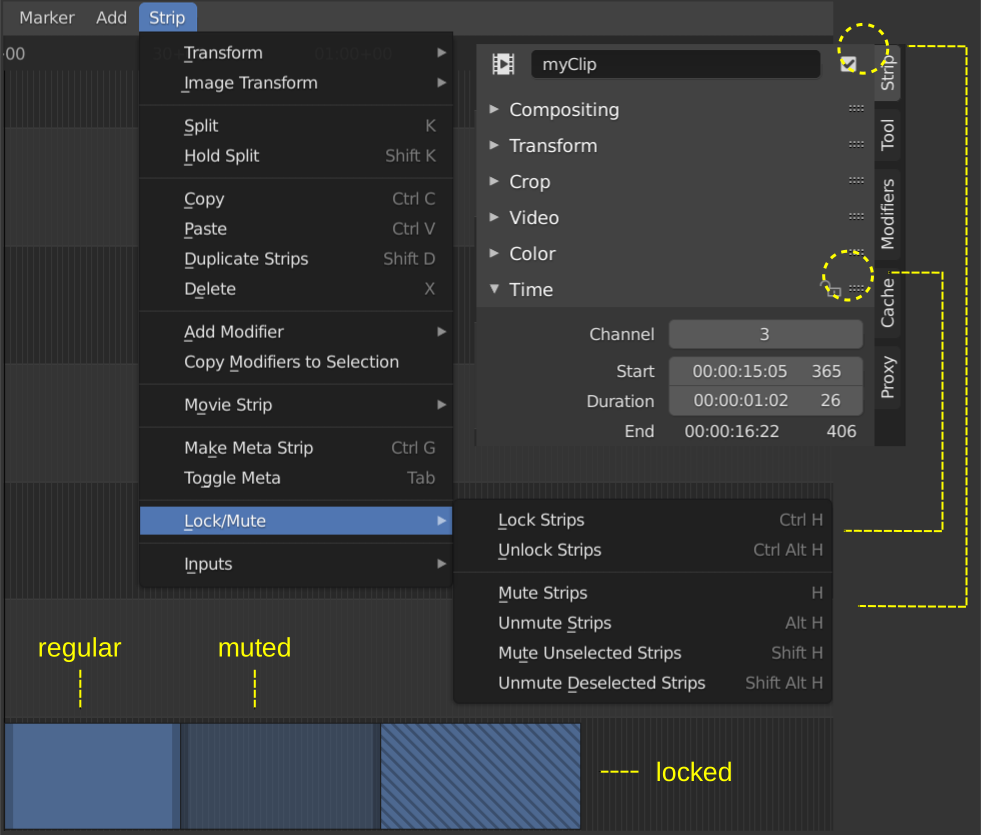
Figure 2: Mute & Lock menu
The Mute command will make a strip invisible in the preview. The command was previously called Hide, which you can deduce from the shortcut key (H). The strip is still visible in the time line (a little bit greyed out; see figure 2) but it will not contribute to the image in the preview. The effect of the Mute command is the same as clicking on the Mute icon in the Strip properties (see figure 2). If you want to apply the Mute on all selected strips, you have to press the Alt key while clicking the icon. You can mute the selected strips or the inverse: the unselected strips.
Mute/Unmute Strips (kbd:H, Alt-H): mute or unmute the selected strips. The strips will be (in) visible in the preview.
Mute/Unmute Deselected Strips (Shift-H, Ctrl-Alt-H): mute or unmute all strips but the selected.
2.2.1.8.3. Lock
The Lock command prevents the strip from being moved in time or that the duration could be changed. The effect of the Lock command is the same as clicking on the Lock symbol in the Time panel (see figure 2) of the strip properties. If you want to apply the Lock on all selected strips, you have to press the Alt key while clicking the Lock symbol. The strip is shown as striped in the sequencer.
Lock Strips (Shift-L): disables the strip from being changed.
Unlock Strips (Shift-Alt-L): enables disabled strips allowing them to be changed.
Remove gaps
Remove blank columns in the timeline window, starting from project Start (usually frame 1). A blank column is a time/frame location where there isn’t any strip in any channel. In other words, the Preview window is empty for that time/frame location.
You can invoke the command with the menu: Strip > Transform > Remove Gaps or with the Backspace key. After the command is issued, you can tick the All Gaps option to remove other gaps or you can press Backspace several times to remove the other gaps.
Note
You can move strips between:
Scenes: copy the strips (Ctrl - C), switch to the other scene and paste (ctrl - V). All strip settings will be copied, except the animation keyframes.
Projects: import the scene with the wanted strips into the current project with the menu File > Append.