2.2.1.5. Move
Moving strips in the timeline is of course a basic operation in video editing. Figure 1 shows a few possibilities. The yellow strip (1) at the left is dragged upon the left red & green strips. Before releasing, strip (2) with the move Cross is temporarily visible. Depending upon the the selected option (shuffle, overwrite, or expand), strips 3, 4 or 5 are the result.
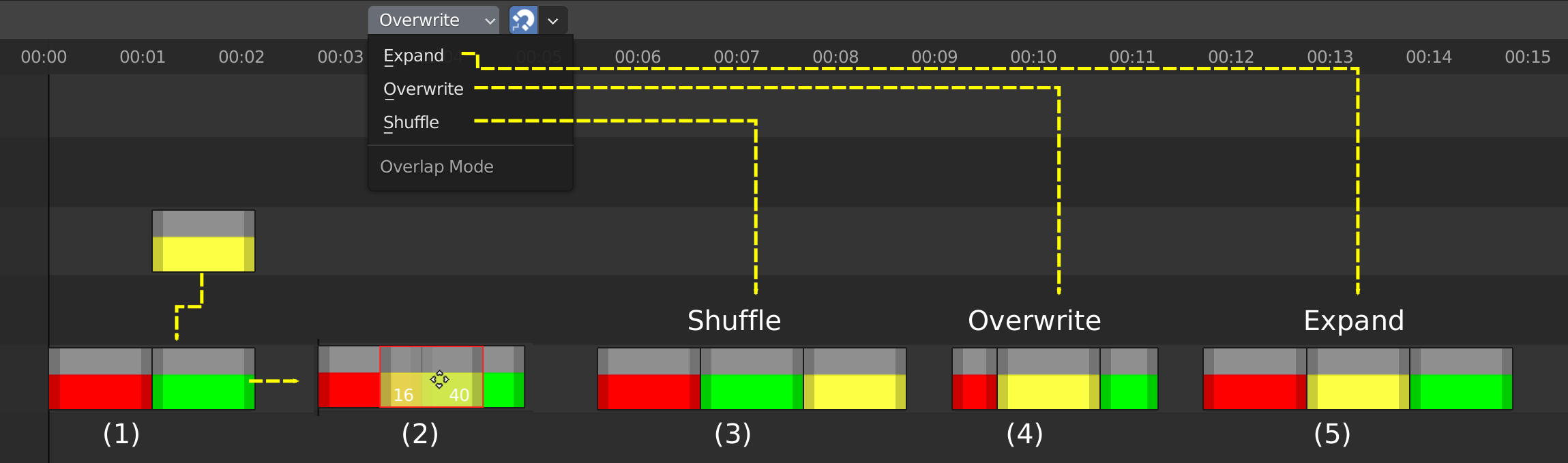
Figure 1: Moving strips in the Sequencer
- LMB - drag
You can select one or more strips and drag them to a new location. Releasing the LMB will place the strip at the new location. Pressing Escape or RMB (while still holding LMB) will cancel the movement. From the moment, you start dragging a Grab operation (see below) is started and new options are available.
- Grab
In figure 1 the yellow strip is selected and pressing G key will grab the strip. Note that a status bar appears with some options, the header is temporarily replaced by a message (Sequence Slide: 0,0), the cursor shape changes to a move-icon and the Start and End frame appear within the strip. These are all signs that you are in Grab mode.
The Grab or G-command is universal in Blender and works the same in most editors. It is also accessible through the menu: Strip > Transform > Move.
Select one or multiple strips. They can be in different channels. See section on selecting for various methods. If you have selected with the mouse, you can release the mouse button.
Press G. The location of the mouse pointer is irrelevant but it is good practice to have the mouse on top of the to-be-moved strip. The Move icon will then nicely follow the strip bar.
Move the mouse horizontally, vertically or both. The strip bar will jump to the next available channel and will be laid on top of existing strips. You can move past the border (although you want see where you will drop the strip).
Press Escape or RMB to cancel the movement or LMB - Click or Enter to confirm the operation. The selected strips will then be locked at the new location.
- Grab - Shift
Moving a strip with the Shift button pressed will move in small increments; eventually frame by frame. The increment size depends on the zoom level (larger steps when zoomed out).
- Grab - Arrow Left/Right
After MMB - drag or G, you can move left or right by one frame with the Arrow - Left or Arrow - Right. This method won’t work with the Up or Down arrow keys to change channel number.
- Grab - number
Pressing G, followed by a positive number X will move the strip horizontally to the right with X frames. So G 10 will move the strip 10 frames to the right. A negative number will move the strips to the left. As always, finish with Escape to cancel or Enter (Click) to confirm.
- Grab - X/Y
You can restrain the movement to the horizontal X-axis or to the vertical Y-axis. So, Grab Y will move the selected strips vertically to a new channel, without changing horizontal position.
- Grab - X/Y - number
Combines the previous two commands. So, G Y 2 will move the strip 2 channels up and G X -10 will move the strip 10 frames to the left.
If you want to specify the movement in seconds, you can always enter the necessary calculation. Suppose, that your project has a fps = 24, then moving a strip 5 seconds is done by G X 5**24. You have to tap the multiply symbol twice (**)!
2.2.1.5.1. Snapping
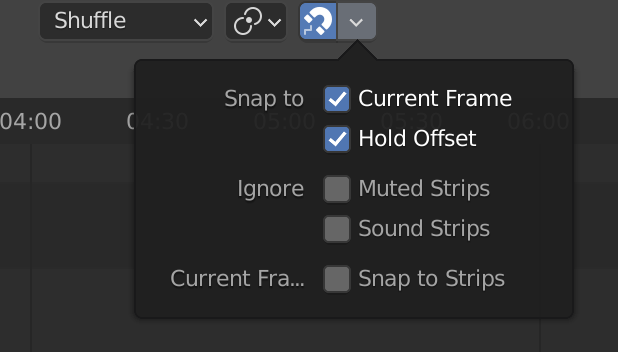
Figure 2: Snapping guides
If there is only one strip in the sequencer, then you can move that strip freely around and there will be no snapping. However, most of the time this is not the case and snapping could occur. The moving strip is suddenly clamped to another strip and the edges are aligned on consecutive frames. This occurs whenever those edges are within a distance of less than 15 pixels.
Snapping can also occur with the playhead. The moving strip is then aligned with the playhead, whenever one of the edges is within that distance of 15 pixels.
Snapping can be induced by moving the strip or by moving the handles (and thus changing the strip duration). The snapping can be visualized by a thin white line. Click on the magnet-icon in the middle of the header to turn on the snapping guides. You can also use the shortcut key Shift - Tab to toggle (see figure 2).
Holding down the Ctrl key while moving a strip, will also toggle the Show Guides command. So, if Show Guides is enabled, you can disable it temporarily while moving the strip by holding down the Ctrl key.
The snapping guide will appear whenever an edge of the moving strip is close (< 15 pixels) to an edge of another strip (see figure 2). All channels are taken into account. So, in a crowded scene, there can be lot of snapping guides (but only those within 15 pixels are shown).
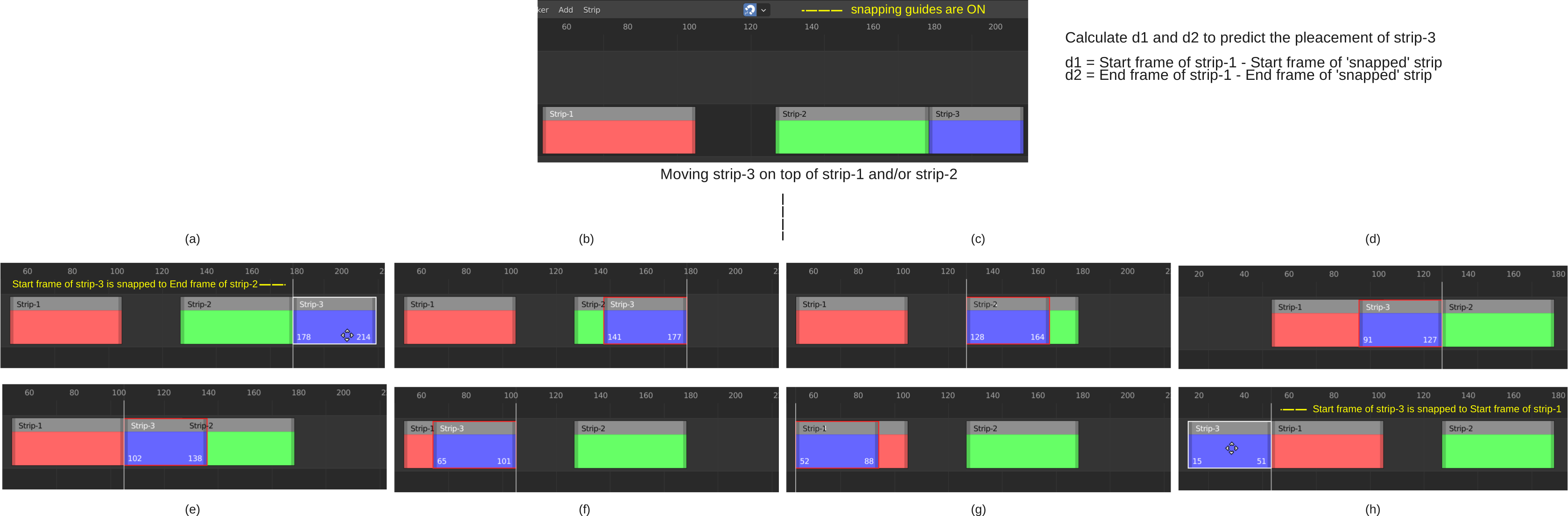
Figure 3: Snapping guides
Figure 3 shows all possible snapping guides with 3 strips. The top-panel represents the original situation (before moving strip-3). Because there are two other strips, there are 8 possibilities to snap. The Start frame of strip-3 can snap to the Start and End frame of strip-2; and so can the End frame (= 4 possibilities; middle row in figure 2). The same reasoning holds for the edges of strip-1 (bottom row of figure 2).
The Start frame of strip-3 is snapped to End frame of strip-2. Result: Strip-3 is appended to strip-2. This is in fact the original situation. Because there are no strips to the right of strip-2, this is a legal move and the border of strip-3 is colored in white.
The End frame of strip-3 is snapped to the End frame of strip-2. This could cause an Overwrite of strip-2; so the border of strip-3 is colored red. Result: because d1 > d2, strip-3 is moved to the next available location: End frame of strip-2.
The Start frame of strip-3 is snapped to Start frame of strip-2. This is again an illegal operation; so the border is red. Because d1 < d2, you should expect that strip-2 should be placed before strip-2. However, there is not enough room> and the result is that strip-3 is put back in its original location.
The End frame of strip-3 is snapped to the Start frame of strip-2. This could be a normal operation if the gap between strip-1 and strip-2 was big enough to hold strip-3. Unfortunately, this is not the case; so the border of strip-3 is colored red and the strip is once again appended to the End of strip-2.
The Start frame of strip-3 is snapped to End frame of strip-1. As in (d), this could be a normal operation but again, the gap is not big enough; so strip-3 is moved again to the End of strip-2 and the border is colored red.
The End frame of strip-3 is snapped to the End frame of strip-1. This is an illegal operation because strip-1 could be overwritten. The border is colored red. Because d1 > d2, it should be moved at the end of strip-1. But there is not enough room; so, the other side is tried, which succeeds.
The Start frame of strip-3 is snapped to Start frame of strip-1. Strip-1 could be overwritten; so the border of strip-3 is red. The result is that strip-3 is moved to the front of strip-1, because d1 < d2.>.
The End frame of strip-3 is snapped to the Start frame of strip-1. There is plenty of room before strip-1; so this could be a normal operation (white border). Strip-3 is moved in front of strip-1.
It’s a little confusing that for example, the snapping guide in figure 3-d and 3-e seems to implicate that the moved strip will be inserted between strip-1 and strip-2. As explained above, this is not the case, unless you activate the Expand-mode (see later).
The snapping guide tool has 5 options (see figure 2).
Current Frame: the playhead (= current frame) is counted as a supplemental edge to snap on. So, the moving strip can either be snapped to an edge of another strip or to the playhead, whichever is closest.
Hold Offset: Strips can be the result of a Hold Split operation (see Hold Split). For example, in figure 4, the Hold Offset Start is at frame 1133 while the first 250 frames are freezed.
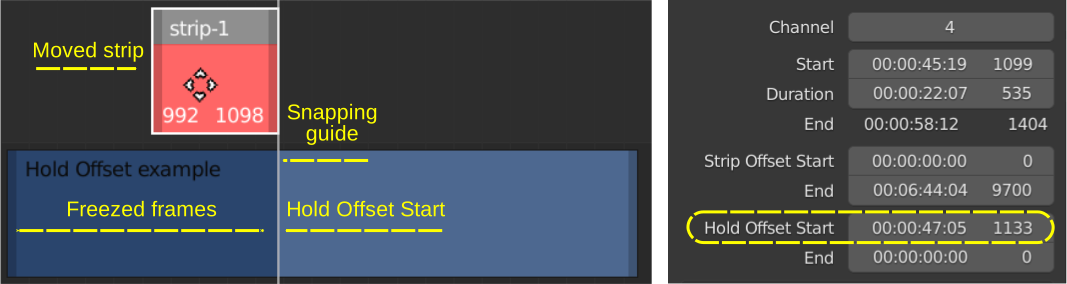
Figure 4: Snapping to the Hold Offset Start field
Muted strips/Sound Strips: when you move a strip, most of the time you don’t want to snap this strip to Muted (hidden) or Sound strips. These options are not ignored by default, but you have switch them on here.
Current Frame: Snap to Strips: not the strips are snapped, but the playhead is snapped to the strip edges while scrubbing. To see this happen, you need to scrub at a low speed; otherwise you will be past the edge before snapping could take place.
- Snap to the playhead
There is also a special command to move and snap strips to the playhead at the same timeline. Select one or multiple clips. They can be spread over multiple channels. Press Shift - S to snap the selection to the playhead.
Warning
If multiple strips are selected, all of them will start at the playhead. The relative position to each other will not be preserved and all the strips are spread over different channels (because they will otherwise overlap); even if the snap option Expand or Overwrite is selected. This command is probably only useful for strips that share a common Start frame; eg. Movie strips with their accompanying Sound strips.
2.2.1.5.2. Shuffle
With the default Shuffle option selected, moving a strip around will always add the dropped strip to the front or back of another strip, never insert it between strips.
Conflict resolution
When the Shuffle option (default) is enabled, moving a strip, so that it (partially) overlap with another strip, will create a temporary red outline around the moving strip, indicating that the strip can’t be moved there (without expending or overwriting) and will be placed further away and clamped to either side of the overlapping strip.
Which side? Two distances are calculated; eg. d1 and d2 in figure 5. Because d2 is smaller than d1, the moving strip-1 will be appended at the end of strip-2 + strip-3 (if there is room). Moving strip-3 between strip-1 and strip-2 is a little more difficult to predict. If d3 < d4, then strip-3 will be placed before strip-1. Otherwise, it will be appended to strip-2.
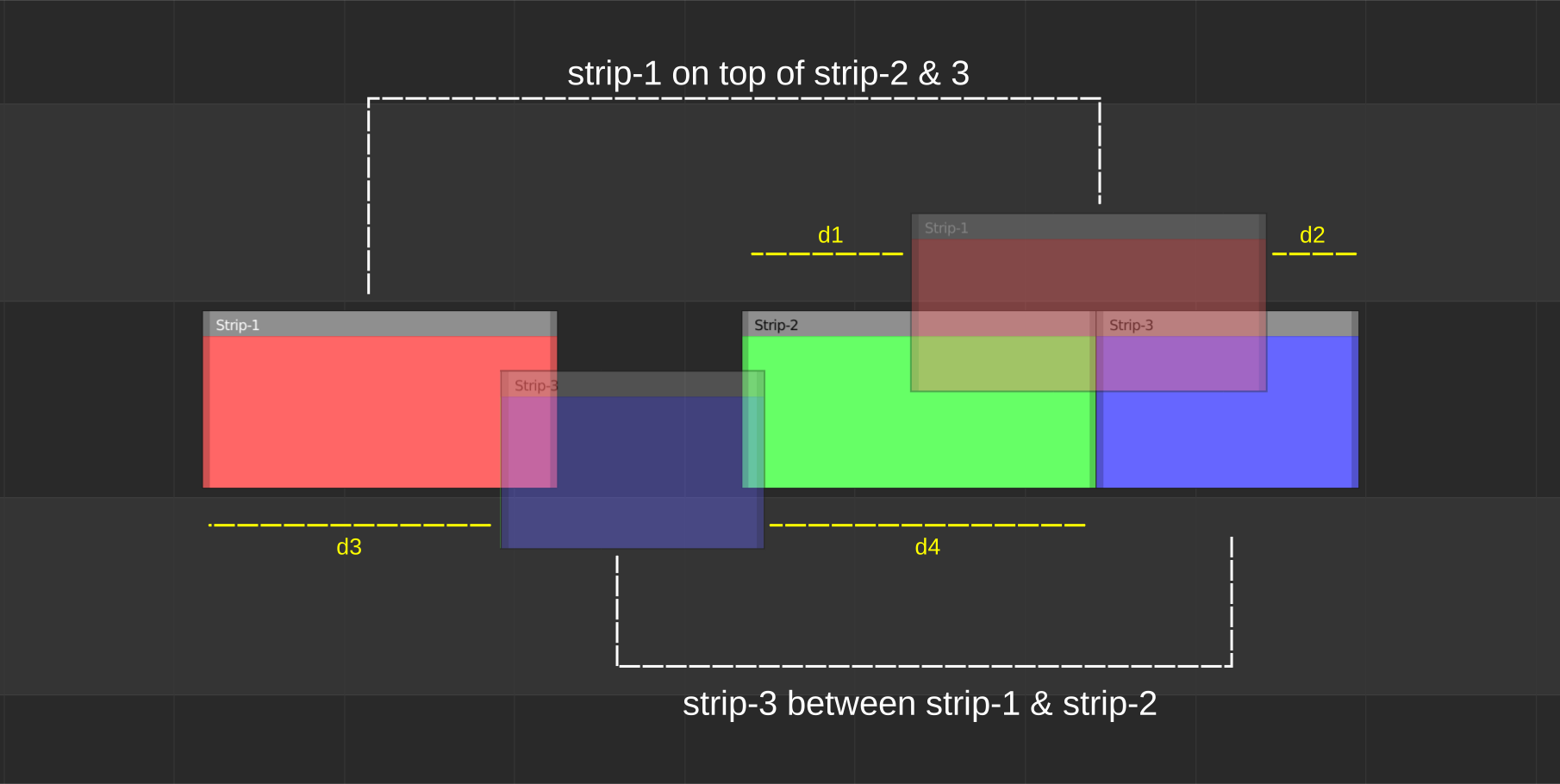
Figure 5: Inserting strips with the Shuffle option is not possible.
The background of a moving strip is drawn semi-transparent if it overlaps with another strip. It’s convenient to see what’s underneath, especially with the Overwrite feature (see below).
2.2.1.5.3. Overwrite
The Overwrite option will replace portions of strips. In figure 1, the yellow strip is dropped upon the red and green strips and will replace the overlapping portions of them. There is no warning, but, of course, you can undo the operation.
Multiple strips can be dropped; each overwriting the portions of strips that they are overlapping.
2.2.1.5.4. Expand
The Expand option will never overwrite any strips but will move them out of place, in case they were overlapping. In figure 1, the dropped yellow strip will expand the original red-green sequence by moving the green strip to the right.
The exact result of the operation, however, depends upon the drop location. If, for example, the yellow strip is dropped at the beginning of the red strip, then both red & green strips are moved to the right and the yellow strip is placed in front of them. If the yellow strip is dropped at the end of the green strip, then it will be added at the tail of the existing red-green strips. If it is dropped (as in the example of figure 1), then the green strip is moved to the right and the yellow strip is inserted.
The Expand mode works also with multiple, selected clips. If there are any gaps between the moving strips, these will be preserved.